The kiosk display
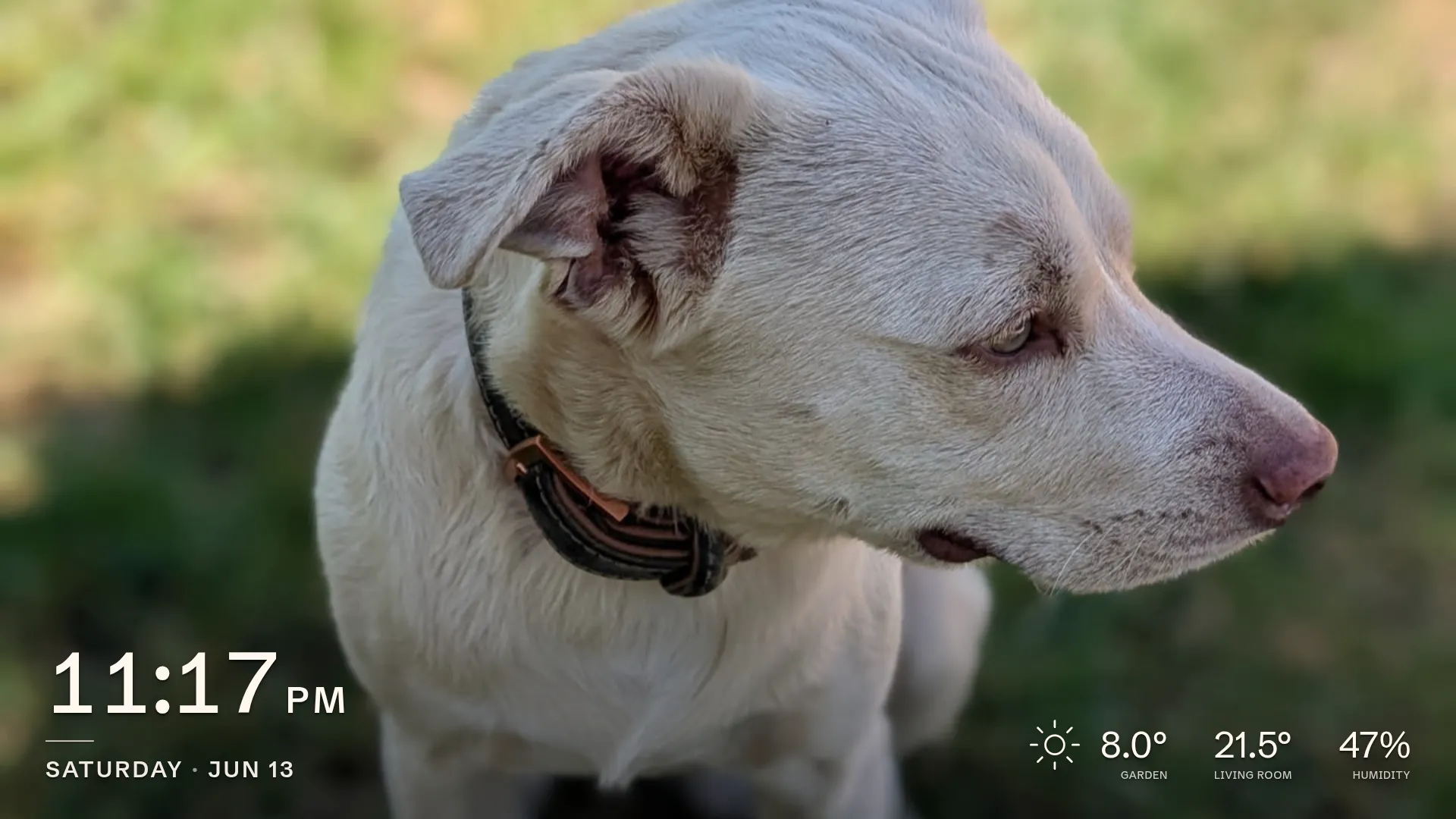
The kiosk is what the frame shows on its own screen: a photo filling the display, with the time, date, and your room readings along the bottom. There is nothing to configure here. Everything on the screen is driven by the settings elsewhere in this manual, and the frame shows the result.
What is on screen
Section titled “What is on screen”The photo. The current slideshow image fills the screen and advances on the interval you set. Manage the photos on Photos, and set the timing and order on Slideshow & display. With no photos added yet, the screen shows just the clock and date.
The clock and date. The time sits large in the corner, with the weekday and date beneath it, formatted for the language you chose, in 12- or 24-hour style, and in the time zone you set. You can also hide the clock and date entirely. Set all of this under Slideshow & display.
The readings. Along the bottom the frame shows, when each one is available, the outside reading, the inside reading, and the humidity, each under the caption you gave it:
- the outside reading comes from an outside temperature sensor, or from weather when no such sensor is set, and the weather icon appears when weather is on;
- the inside temperature and humidity come from the matching inside sensors.
A reading shows only when its source is configured, and one that has stopped arriving falls back
to --. When nothing is left to show, no readings, no weather, and the clock and date hidden, the
whole bottom overlay disappears and the photo fills the screen on its own.
The clock, date, and readings drift slowly around a small circle, a step each minute and a full turn each hour. Each step is about a pixel, too small to notice, and over an hour it keeps an OLED panel from wearing the same bright edges into one spot. LCD panels do not need this, but it costs them nothing. There is no setting for it.
Touching the screen
Section titled “Touching the screen”Touch the left half of the screen for the previous photo, the right half for the next. Either one restarts the timer, so the new photo gets a full interval before the slideshow moves on.
Photos change with the usual crossfade, so a touch takes a few seconds to settle. Touches during the fade do nothing.
Touching a dark screen lights it up again on the same photo. That holds whether the screen went dark by itself when the room emptied or you switched it off from the Dashboard or Home Assistant. Switching it back on this way also restores the motion wake.
A touch that changes the photo or wakes the screen updates the last touch sensor in Home Assistant. Touches during a fade do not.
When the screen sleeps
Section titled “When the screen sleeps”With a motion sensor, the frame turns the screen off when the room empties and wakes it when you return. See Slideshow & display. You can also switch it on or off by hand from the Dashboard or Home Assistant.