Dashboard
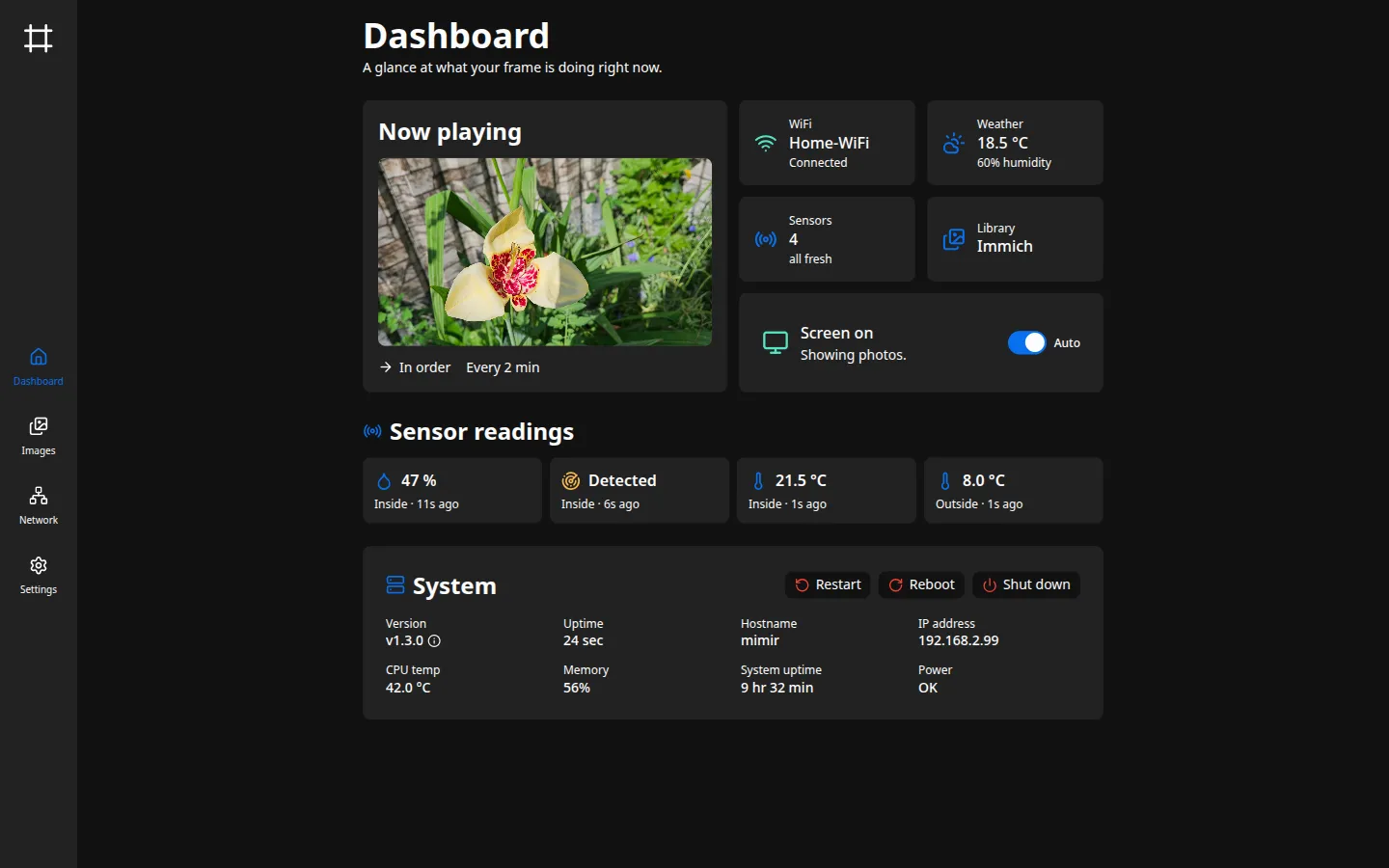
The dashboard is the admin interface’s home page. It’s a read-mostly overview of what the frame is doing right now: the current photo, connection and sensor health, the screen’s state, and basic system information. Most of the controls here are shortcuts into the other sections.
Now playing
Section titled “Now playing”Shows the photo currently on the screen, how often photos advance, and whether they play in order or shuffled. Those last two come from the slideshow settings on Slideshow & display. Manage the photos themselves on Photos.
Status tiles
Section titled “Status tiles”A row of tiles summarizes the frame’s connections and inputs. Each one links to the section where you can change it.
- Network. The current connection and its state, wired or wireless. Opens Network.
- Weather. The latest reading from OpenWeatherMap, when weather is configured. Set it up under Weather.
- Sensors. How many sensors are configured and whether their readings are fresh. If any have stopped reporting, a count of stale ones shows here. See Sensors.
- Library. Whether photos come from local uploads or Immich, with a warning if the last Immich sync failed. Opens Photos.
Screen
Section titled “Screen”The screen card shows whether the panel is on or off, with a short note on why. A toggle switches between two modes.
- Auto. The frame manages the screen. With a motion sensor it blanks after a stretch of no motion and wakes when motion returns. Without one, the screen stays on.
- Off. Forces the screen off and ignores motion until you switch back to Auto.
The idle timeout and motion sensing behind this are covered on Slideshow & display and Sensors.
Live sensor readings
Section titled “Live sensor readings”Below the tiles, the dashboard lists each current reading (temperature, humidity, motion) with the sensor’s role and how long ago it last reported. A reading that hasn’t updated within its freshness window is marked stale. Configure sensors on Sensors.
System
Section titled “System”The system card reports the device’s basics.
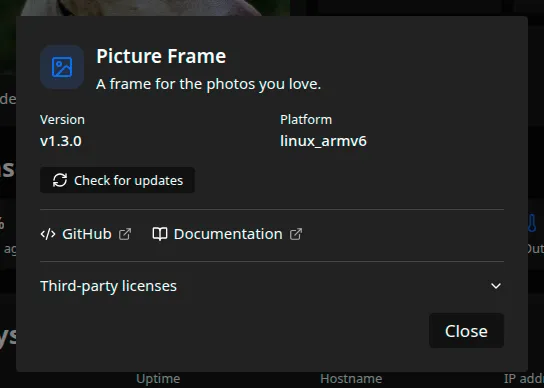
- Version. The running version. Click it to open the About dialog, which shows the platform, offers a Check for updates button, and lists the third-party license notices.
- Uptime, hostname, and IP address of the device.
- CPU temp, memory use, system uptime since the Pi last booted, and power, which reads OK unless the Pi reports undervoltage.
- Restart. Restarts the program in place, without rebooting the Pi. Use it to apply the few settings that ask for a restart (see Configuration basics).
- Reboot. Restarts the whole device. Slower than a restart, and the right choice when the Pi itself is misbehaving rather than the frame program.
- Shut down. Powers the device off. It stays off until someone powers it on again, so use it before unplugging the frame rather than pulling the cord on a running system.
Each of the three asks for confirmation first. The same two device actions are available from Home Assistant.
Software updates
Section titled “Software updates”The frame checks for new releases on its own. To scan right away, open the About dialog (click the version in the System card) and choose Check for updates.
When a release is ready, an Update available panel appears near the top of the dashboard with the version, a link to the release notes, and an Update now button.

Installing it downloads and verifies the release, then restarts into the new version, so the frame is briefly unreachable. If the new version fails to start, the frame rolls back on its own and a notice here says so.
This is where updates are installed by hand. Automatic updates and the release source are configured separately on Software updates.